Changing the Windows Display Language via User Data During Instance Launch
-
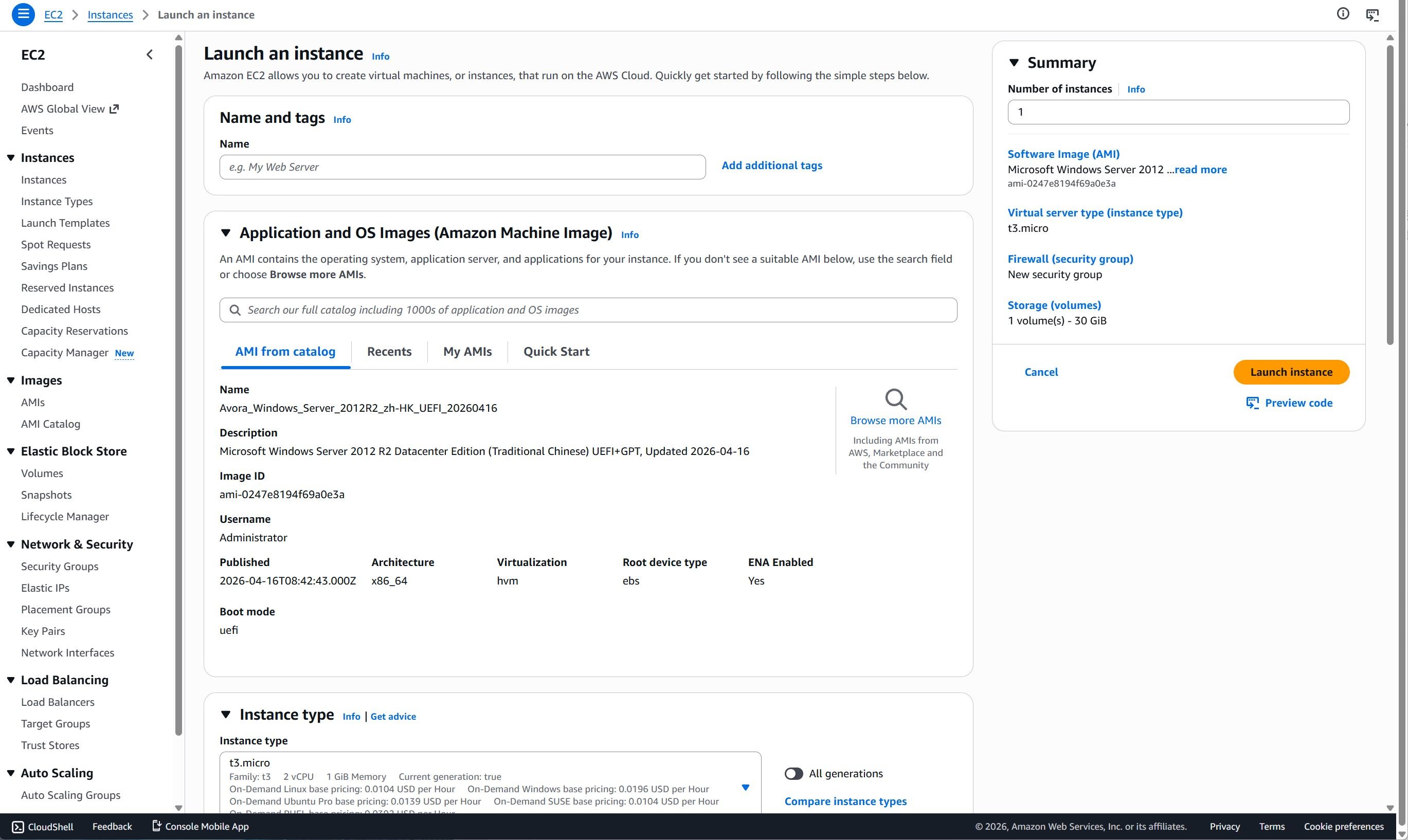
We have successfully released Chinese-language AMI images for Windows Server 2012 R2, 2016, 2019, 2022, and 2025 on AWS. The default display language for these AMIs is Chinese, but you can change the operating system's display language to English (United States) via user data during the initial instance boot process.
AVORA TECHNOLOGY strictly adheres to relevant specifications when integrating language packs into Windows AMIs, and this typically does not cause any adverse effects. However, considering that the primary audience for this product consists of Chinese users, we do not rule out the possibility of removing the English language pack in future version updates to reduce the size of the AMI images.
Instructions:
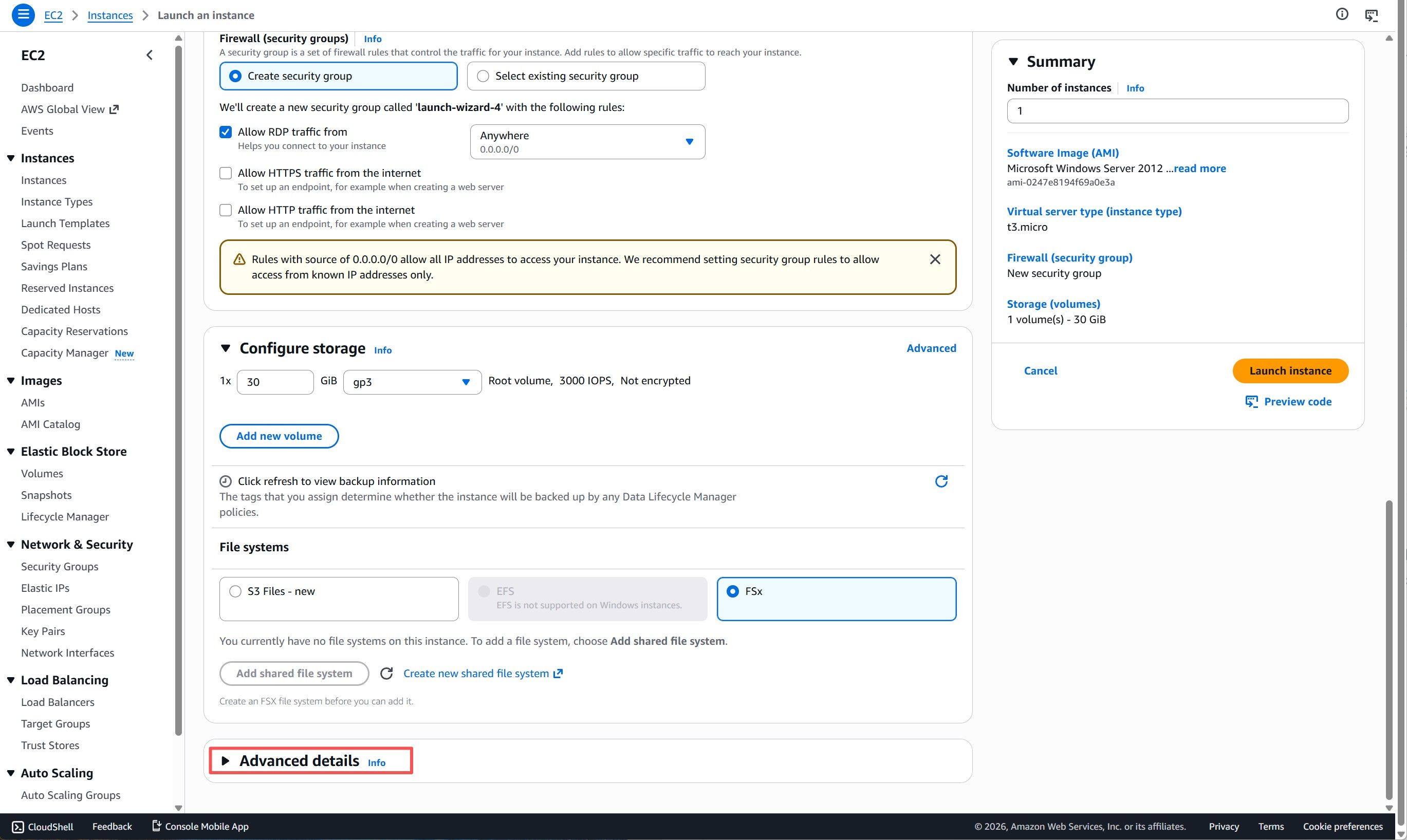
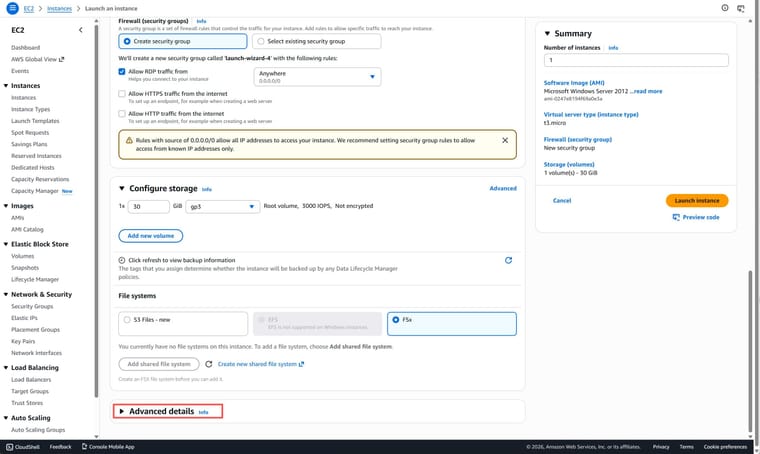
- Expand the "Advanced details" option at the bottom of the "Launch an instance" wizard;
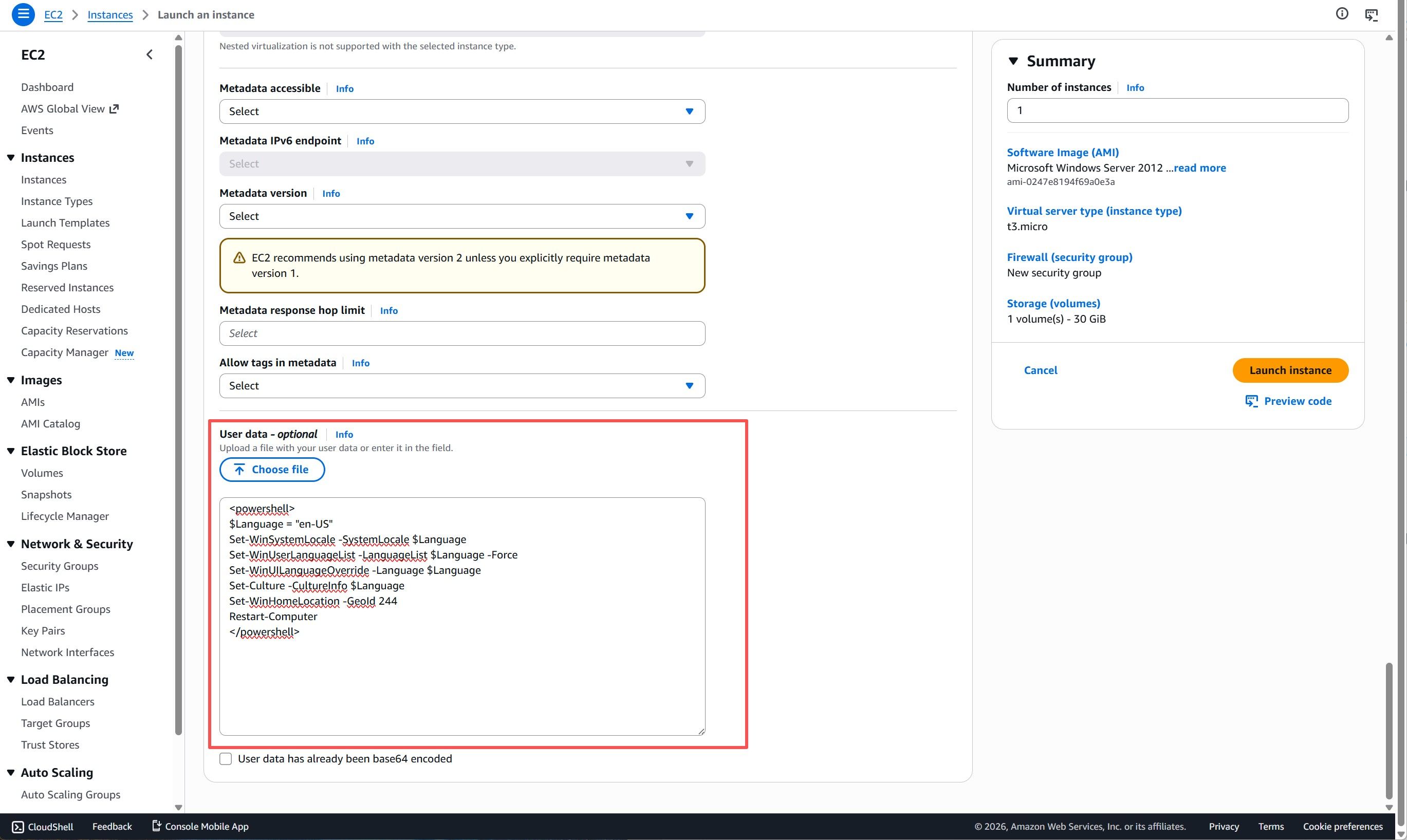
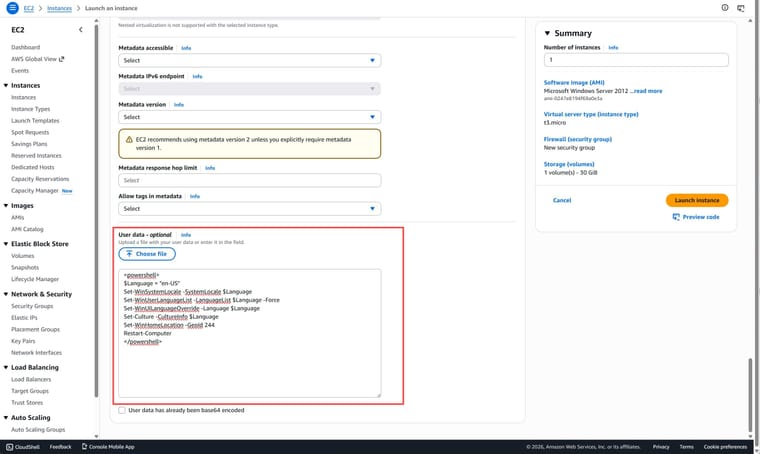
- Then, in the "User data - optional" section at the very bottom of the page, enter the following content (do not check the "User data has already been base64 encoded" box):
<powershell> $Language = "en-US" Set-WinSystemLocale -SystemLocale $Language Set-WinUserLanguageList -LanguageList $Language -Force Set-WinUILanguageOverride -Language $Language Set-Culture -CultureInfo $Language Set-WinHomeLocation -GeoId 244 Restart-Computer </powershell>- Proceed to launch the instance as usual. Since this change involves an additional reboot step, the initial startup time of the instance will be slightly longer.
Hello! It looks like you're interested in this conversation, but you don't have an account yet.
Getting fed up of having to scroll through the same posts each visit? When you register for an account, you'll always come back to exactly where you were before, and choose to be notified of new replies (either via email, or push notification). You'll also be able to save bookmarks and upvote posts to show your appreciation to other community members.
With your input, this post could be even better 💗
Register Login